

Did you know over 85 percent of U.S. households use at least one streaming service daily? The world of digital entertainment has changed. Now, we have flexible, web-based options with thousands of channels.
More people are choosing internet protocol television over expensive cable contracts. This tech offers a better viewing experience. It gives access to niche shows and international broadcasts.
Setting up a reliable iptv player is key for a modern home theater. With a strong smart tv app, watching your favorite shows becomes easy. You get seamless online streaming.
This guide will help you add live television to your daily routine. It provides clear steps to set up your home viewing. You’ll enjoy a better viewing experience.
Key Takeaways
- Understand why many people choose web-based media solutions today.
- Learn how to configure a powerful media player on your device.
- Discover how to access thousands of global channels with ease.
- Explore the benefits of using modern streaming technology at home.
- Follow simple steps to improve your digital viewing setup quickly.
- Master the basics of managing your online broadcast libraries.
Understanding GSE IPTV and Smart TV Requirements
Smart TV users can enjoy better viewing with GSE IPTV, a flexible IPTV player app. Knowing its main features and compatibility with smart TVs is key.
What is GSE IPTV and Its Key Features
GSE IPTV offers a smooth streaming experience. It has IPTV Playlist Management for easy channel organization. This makes finding favorite channels simple.
The app’s user-friendly interface makes it easy to navigate and customize. It works with many devices, including smart TVs. GSE IPTV supports various playlist formats, ensuring users can watch their content without problems.
It also has EPG (Electronic Program Guide) support. This gives users a detailed schedule of upcoming shows.
What You Need Before Getting Started
Before starting with GSE IPTV, a few things are needed for a smooth setup. First, check if your smart TV supports the app. Most modern TVs with Android TV, Samsung Tizen, or LG WebOS can run GSE IPTV.
You’ll also need an active IPTV subscription for live TV and content. A fast and stable internet connection is essential for uninterrupted streaming.
| Requirement | Description |
|---|---|
| Smart TV Platform | Android TV, Samsung Tizen, LG WebOS |
| IPTV Subscription | Active subscription for live TV and content |
| Internet Connection | Stable and fast internet for smooth streaming |
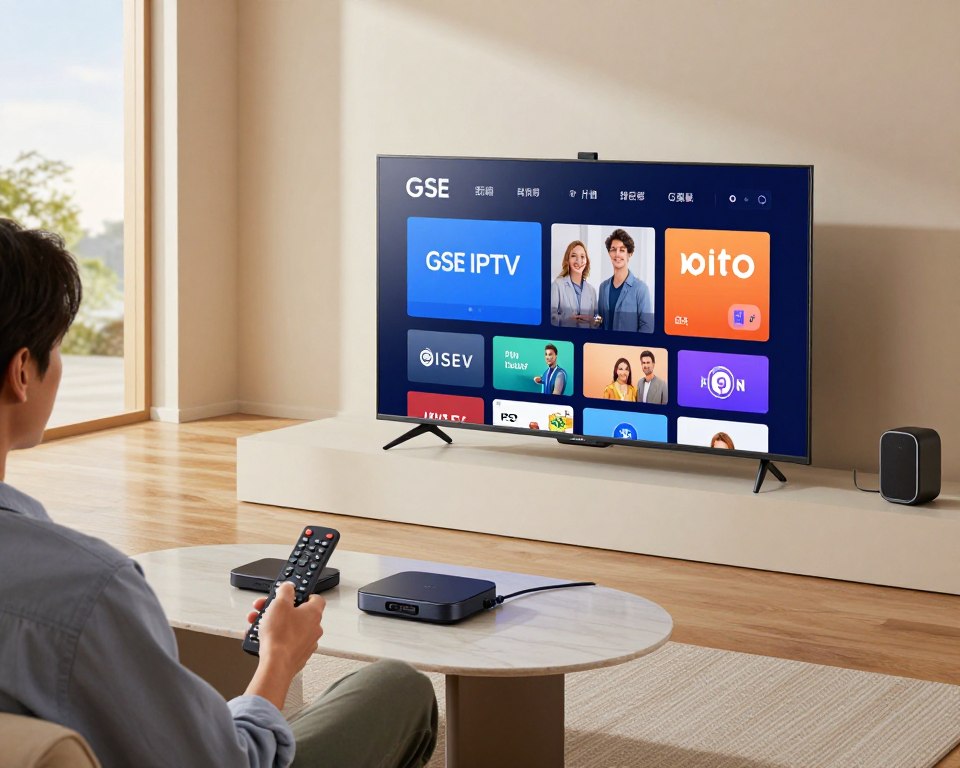
Understanding these needs and features helps users prepare for a great GSE IPTV experience on their smart TVs.
Setting Up IPTV GSE Smart IPTV: Complete Installation Process
Start using GSE IPTV on your smart TV with these simple steps. The setup is easy, so you can quickly watch your favorite channels.
Step 1: Download GSE IPTV Player to Your Device
First, download the GSE IPTV player to your device. Make sure your smart TV can run the app and has enough space. You can get the GSE IPTV player from your TV’s app store or a trusted APK site.
Step 2: Launch the App and Navigate the Interface
After installing, open the GSE IPTV app on your TV. Its easy-to-use design makes it simple to find what you need. Get to know the menu, including channels, EPG, and settings.
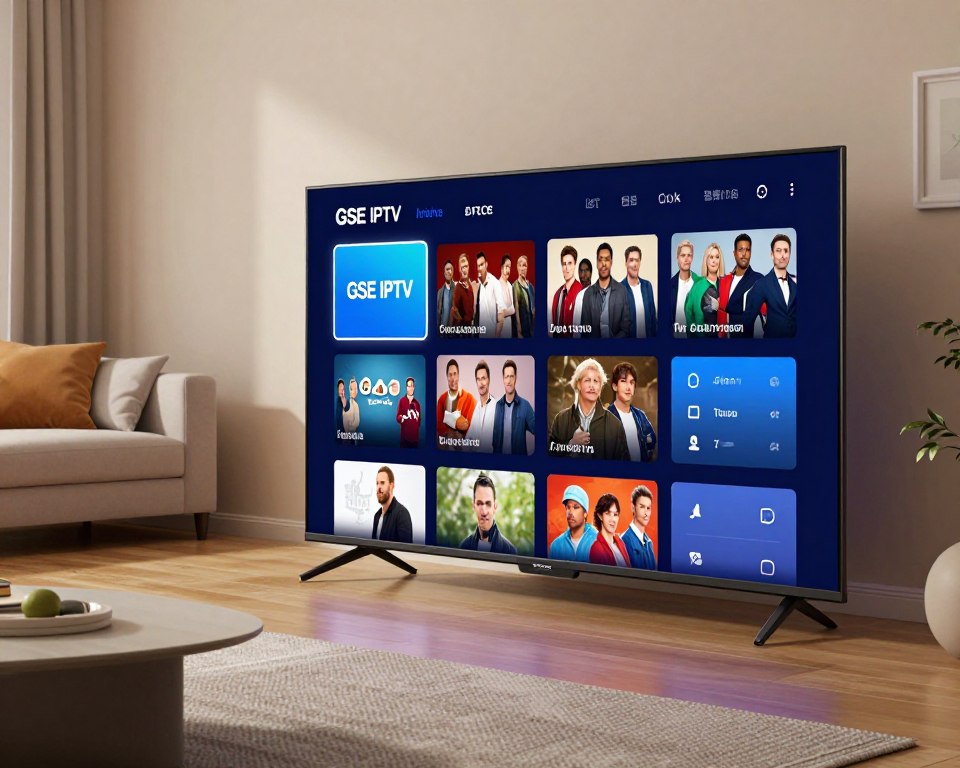
Step 3: Add Your IPTV Playlist to GSE IPTV
To watch your IPTV channels, add your playlist to GSE IPTV. There are two ways to do this:
Adding a Remote Playlist via URL
Enter the URL from your IPTV service to add a remote playlist. This keeps your playlist current.
Adding Xtream Codes API Connection
Or, use Xtream Codes API with your API credentials. Your IPTV service provider can give you these. It’s a strong way to stream channels.
| Method | Description | Requirements |
|---|---|---|
| Remote Playlist via URL | Add playlist using a URL | URL from IPTV provider |
| Xtream Codes API Connection | Connect using Xtream Codes API | API credentials from IPTV provider |
Step 4: Configure Channel Settings and Customize Your Experience
After adding your playlist, set up your channels how you like. Organize favorites, set up EPG, and tweak video settings for the best viewing.
By following these steps, you’ll enjoy a smooth streaming IPTV experience on your smart TV with GSE IPTV. Its flexibility and customization make it a top choice among top IPTV apps.
Conclusion
Setting up GSE IPTV on your smart TV is easy. It opens a world of entertainment right in your living room. You can enjoy iptv streaming without any hassle and explore a huge iptv channel list.
The smart iptv app makes it simple to use and customize your viewing. This guide will help you set up gse iptv on your device. You can then watch your favorite TV shows and movies.
gse iptv pro offers a top-notch viewing experience with advanced features. It’s perfect for anyone looking for a reliable iptv service or wanting to improve their iptv setup. Download the gse smart iptv app now and enjoy endless entertainment on your smart TV.