
Streaming is getting more popular, with millions of users using IPTV apps for fun. TiviMate is a top choice, offering lots of channels and on-demand shows.
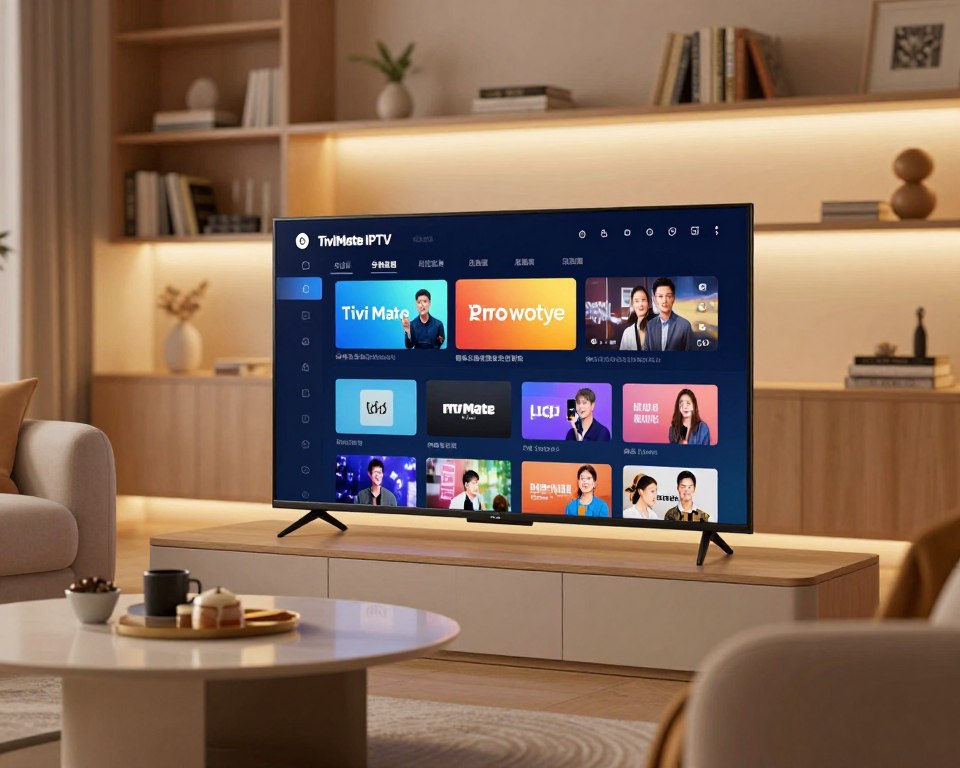
TiviMate makes watching shows easy, with features like EPG, DVR, and support for watching on multiple screens. This guide will show you how to unlock TiviMate‘s full power. You’ll learn to enjoy your favorite shows and movies.
By the end, you’ll know how to use TiviMate to watch your favorite channels and shows.
Key Takeaways
- Understand the basics of the TiviMate IPTV app
- Learn how to navigate the app’s interface
- Discover how to access a wide range of channels and on-demand content
- Find out how to use the EPG and DVR features
- Learn how to customize the app to suit your viewing needs
Getting Started with TiviMate: Installation and Initial Setup
Starting your streaming journey with TiviMate is easy. First, you need to install and set it up right. Knowing your device’s system requirements and compatibility is key for a smooth experience.
System Requirements and Compatibility
TiviMate works great on Android TV devices. It supports many versions. Make sure your device runs on Android 5.0 or later. Also, a fast internet connection is needed for streaming.
Downloading and Installing TiviMate on Android TV
There are two ways to install TiviMate on your Android TV. You can get it from the Google Play Store or sideload it on unsupported devices.
Installing from Google Play Store
If your device supports the Google Play Store, installing TiviMate is simple:
- Open the Google Play Store on your Android TV.
- Search for “TiviMate” using the search bar.
- Select the TiviMate app from the search results.
- Click “Install” to download and install the app.
Sideloading TiviMate on Unsupported Devices
If your device can’t use the Google Play Store, sideloading is an option:
- Enable installation from unknown sources in your device settings.
- Download the TiviMate APK from a trusted source.
- Transfer the APK to your Android TV using a USB drive or other file transfer method.
- Install the APK by opening it on your Android TV.
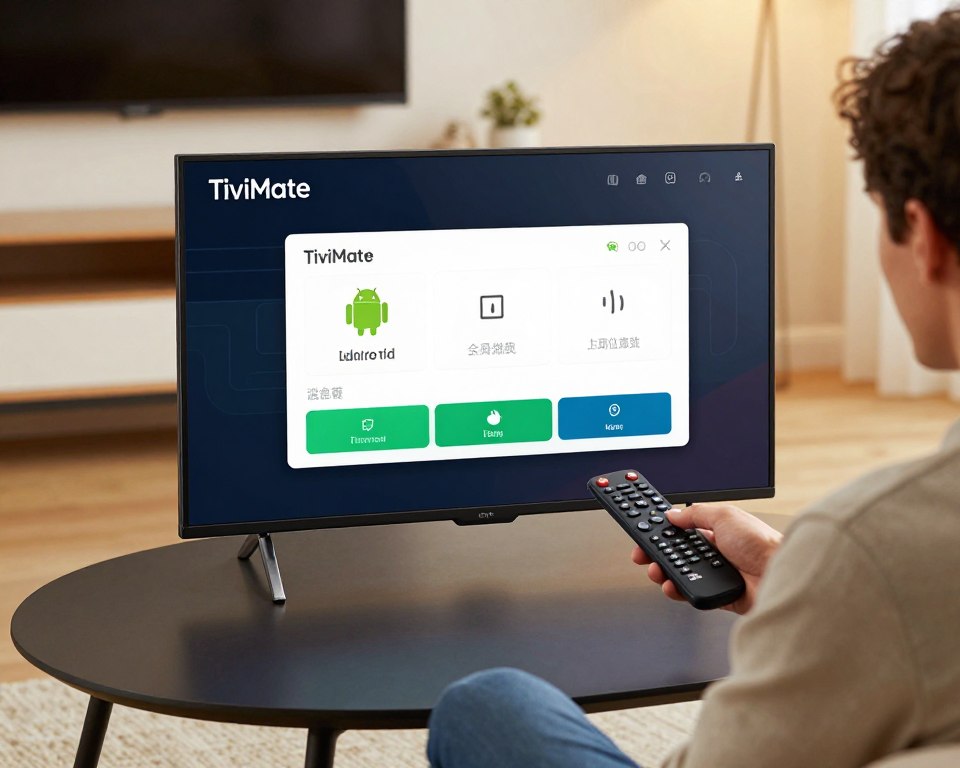
Adding Your First IPTV Playlist
After installing TiviMate, it’s time to add your IPTV playlist. TiviMate makes it easy to add playlists in several ways.
Using M3U URL Method
The M3U URL method is easy to use:
- Get the M3U URL from your IPTV service provider.
- Open TiviMate and go to the “Playlists” section.
- Click “Add Playlist” and choose “M3U URL.”
- Enter the M3U URL and click “Save.”
Using Xtream Codes API
TiviMate also supports Xtream Codes API for playlists:
- Get your Xtream Codes API credentials from your IPTV provider.
- In TiviMate, go to “Playlists” and click “Add Playlist.”
- Select “Xtream Codes API” and enter your credentials.
- Click “Save” to add the playlist.
By following these steps, you can install TiviMate on your Android TV and start streaming your favorite shows.
Mastering TiviMate Features for Optimal Streaming Experience
The TiviMate app lets users make it their own. It’s all about making streaming better for you. This makes it easy and fun to use.
Customizing the TV Guide and User Interface
Customization is key in TiviMate. It starts with the TV guide and how the app looks. You can change it to fit your style.
Adjusting Channel Layout and Groups
TiviMate lets you organize channels how you want. You can group them and arrange them for easy access. This is great for keeping track of your favorite shows.
Personalizing Theme and Color Schemes
TiviMate also lets you pick how it looks. Choose from different themes and colors to match your home or taste.
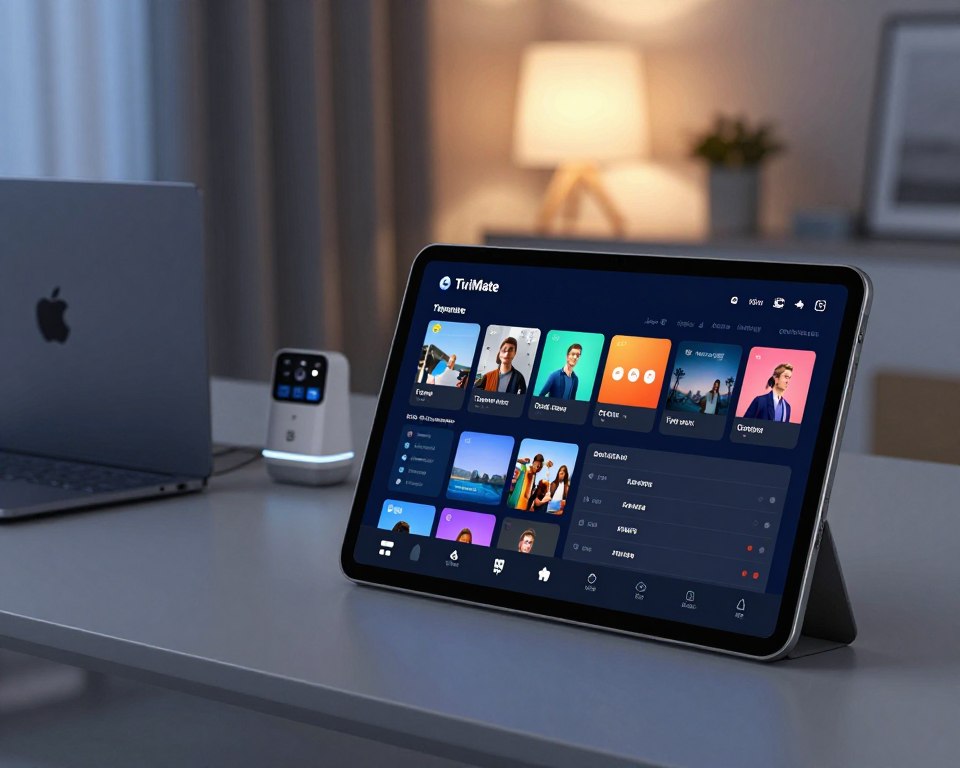
Setting Up Recordings and Catch-Up TV
With TiviMate, you can record shows you love. And catch-up TV lets you watch shows you missed later. It’s all about convenience.
Managing Multiple Playlists and EPG Sources
For those with many IPTV playlists or EPG sources, TiviMate makes it easy. It’s perfect for those with different subscriptions or preferences.
| Feature | Description | Benefit |
|---|---|---|
| Customizable TV Guide | Personalize the TV guide layout and appearance | Enhanced user experience |
| Recording and Catch-Up TV | Schedule recordings and watch catch-up content | Convenience and flexibility |
| Multiple Playlist Management | Manage multiple IPTV playlists and EPG sources | Streamlined content access |
Optimizing Playback Settings and Player Options
TiviMate lets you tweak playback settings for the best viewing. You can adjust buffer, decoder, and parental controls.
Configuring Buffer and Decoder Settings
Changing buffer and decoder settings can improve video quality. TiviMate helps you adjust these based on your internet and device.
Enabling Parental Controls
For families, TiviMate’s parental controls are a must. They let you block certain channels or content for kids.
By using these features, TiviMate users get a streaming experience tailored just for them. Whether it’s tweaking the interface, managing playlists, or adjusting playback, TiviMate has everything you need for a great streaming experience.
Conclusion
Following this TiviMate tutorial lets users unlock its full power. The setup is easy, and TiviMate brings many features to enhance streaming.
Users can customize their TV guide, set up recordings, and manage playlists. These features, along with optimized playback, make streaming smooth and fun. Learning these features can elevate your streaming experience.
In summary, TiviMate is a flexible and easy-to-use streaming app. It offers many benefits. By knowing how to use TiviMate well, users can easily watch their favorite TV shows and movies.